

An app for recording your oshi life · Oshi Life 2.0

Snap a photo, and the draft is ready.

Take a photo of a ticket or receipt, and Oshi Life drafts the event, expense or goods for you. Check it and save, and the only typing left is whatever you want to fix. Manage entry deadlines, lottery results and what you spend on your oshi, all from your iPhone.

Download on the App Store

On the Free plan, you can use Snap to Record 3 times a month (tickets and receipts combined). Premium has no limit.

Free (with in-app purchases) · iPhone with iOS 17.0 or later

Animation: a receipt is photographed, split into a goods draft and an expense draft for each item, and added to this month's spending on Home.

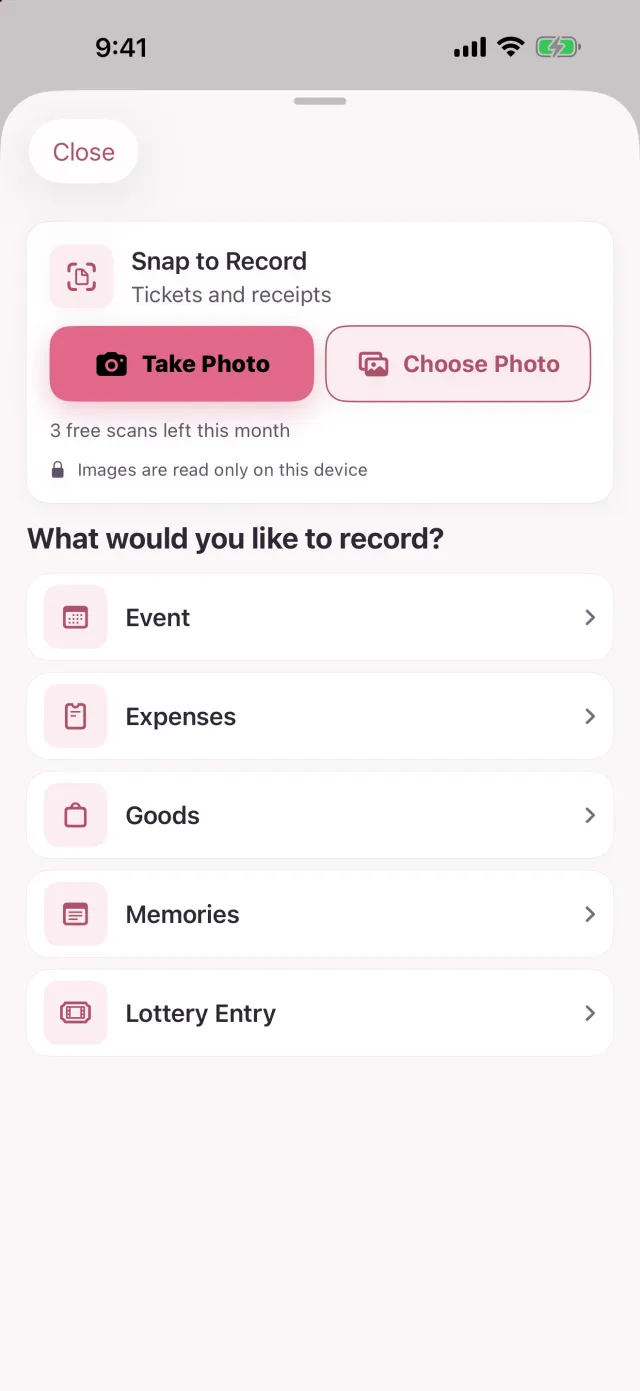
Snap to Record

Every item on the receipt becomes goods and an expense.

You're back from a trip to see your oshi, typing in the receipts from your wallet one by one. Oshi Life turns that chore into snapping a photo and checking what it picked up.

  • Receipts, item by item

    A receipt for an acrylic stand and a concert towel gives you one goods entry and one expense for each item. Tax and anything left over go into one expense under Other, and if the items can't be read, the total becomes one expense.

  • Tickets become events

    It reads the title, date and time, venue, seat and price, and drafts an event. If the price was read, you can record the ticket price as an expense right after saving the event.

  • E-ticket screenshots too

    Besides taking a photo, you can choose one from your library. If a ticket is read as a receipt or the other way around, you can read the same image again as the other kind.

Scanning happens on your iPhone. Images and text never leave your iPhone for scanning.

The Free plan includes 3 scans a month (tickets and receipts combined). Premium has no limit.

The Record screen, with Snap to Record at the top and the kinds of records below it.
Open it from any screen with the Record (+) button in the middle of the tab bar.

Your oshi's color and Dark Mode

Switch oshi, and the app's color switches too.

Buttons, tabs and card accents take on the color of the oshi you've selected. If your oshi's color is pink, the app goes pink; if it's mint, it goes mint.

  • A color for each oshi

    Choose a color for each oshi, and the whole app changes color when you switch to that oshi.

  • Dark Mode too

    By default it follows your iPhone's setting. You can also set it to always Light or always Dark under Appearance in the app's Settings.

Animation: the accent color on Home changes through the oshi colors one by one, then switches to Dark Mode.

Events and lotteries

No more screenshots to remember entry deadlines.

When you enter a ticket lottery, add the entry to Oshi Life. The entry deadline, results announcement and payment deadline show up in your events, and a reminder arrives as each one gets close.

  1. Add the entry

    Fill in the show you applied for and the dates and times of the deadline and the results announcement.

  2. 3 events appear

    The entry deadline, results announcement and payment deadline are added to your calendar automatically.

  3. Win, and the show date is added

    Record a win and enter the event date, and the show is added as an event.

  4. See your win rate

    Record each result, and you can see your win rate so far.

  • Deadline reminders the day before

    You're reminded of the entry deadline and the payment deadline the day before, and of the results at the time they're announced.

  • 3 days before and on the day Premium

    On top of the day-before reminder, you're also reminded of the entry deadline and the payment deadline 3 days before and on the morning of each deadline.

  • Lottery Board

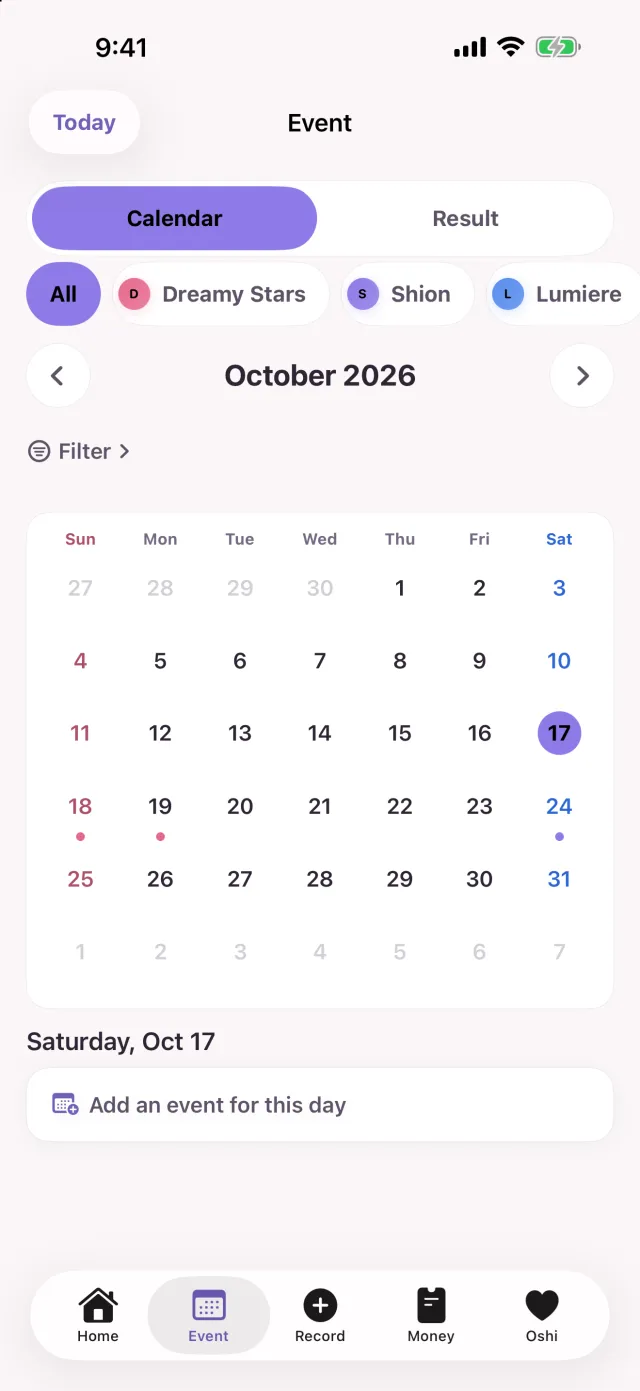
    Switch to Result with the [Calendar | Result] toggle at the top of the Event tab, and your entries are sorted into "Entering", "Awaiting results", "Payment due", "Ready to go" and "Not selected".

  • 12 kinds of events

    Live shows, releases, streams, TV, radio, YouTube, goods and more. Type in any venue or oshi name you like.

The calendar in the Event tab, with the [Calendar | Result] switch and buttons for filtering by oshi at the top.
With 2 or more oshi, you can filter by oshi.

Money

See what you spent this month without a calculator.

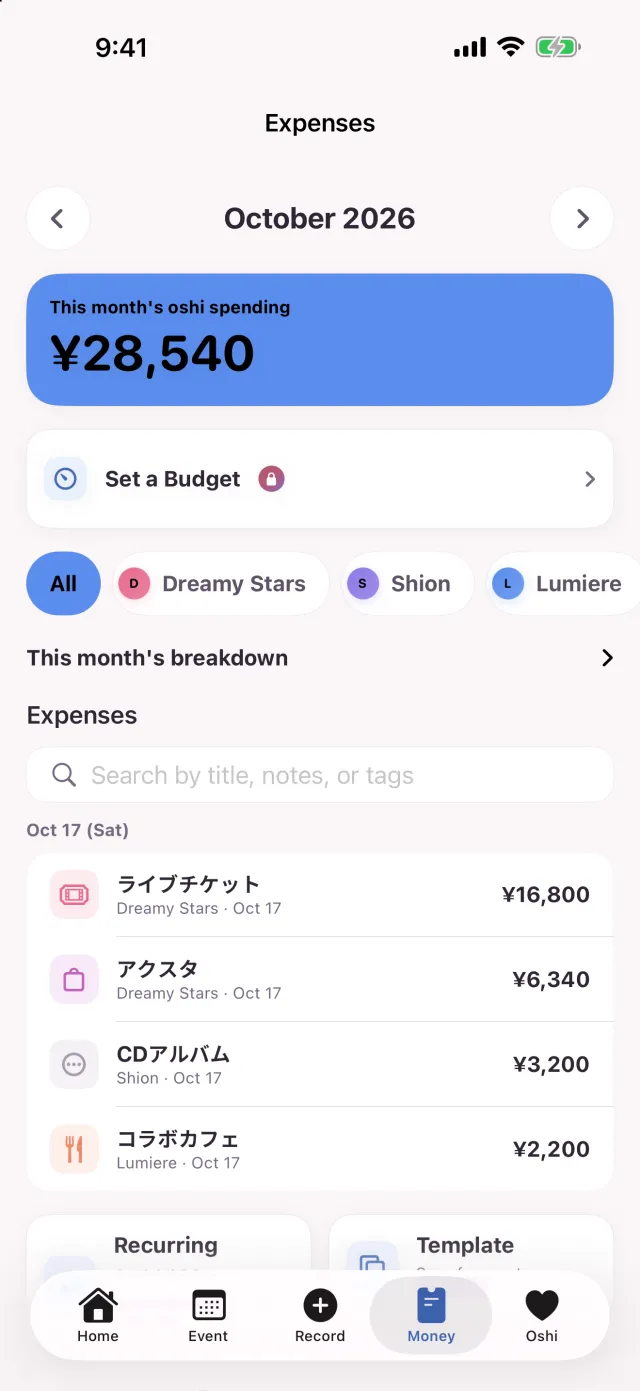
Tickets, goods, travel, hotels, food. Your expenses are totaled by oshi and by category, and you can look back month by month in the Money tab.

  • This month on one screen

    The Money tab puts the total, the change from last month, the breakdown and the list on one screen.

  • Less typing

    Add expenses you log often from a template. Set up subscriptions and membership fees as recurring expenses, and each payment is added automatically when it's due.

  • Goods and expenses together

    Turn on "Also record as an expense" when you add goods, and the expense is recorded at the same time.

  • View by oshi

    With 2 or more oshi, you can filter the breakdown and the list by oshi.

  • Budget Premium

    Set a monthly budget, and what's left shows on Home and in widgets. You're notified when you reach 80% of it and when you go over.

The Money tab, with this month's total and, below it, the breakdown and the list of expenses.
Exporting expenses as CSV or PDF is a Premium feature.

Oshi

On the train home, write down tonight's setlist.

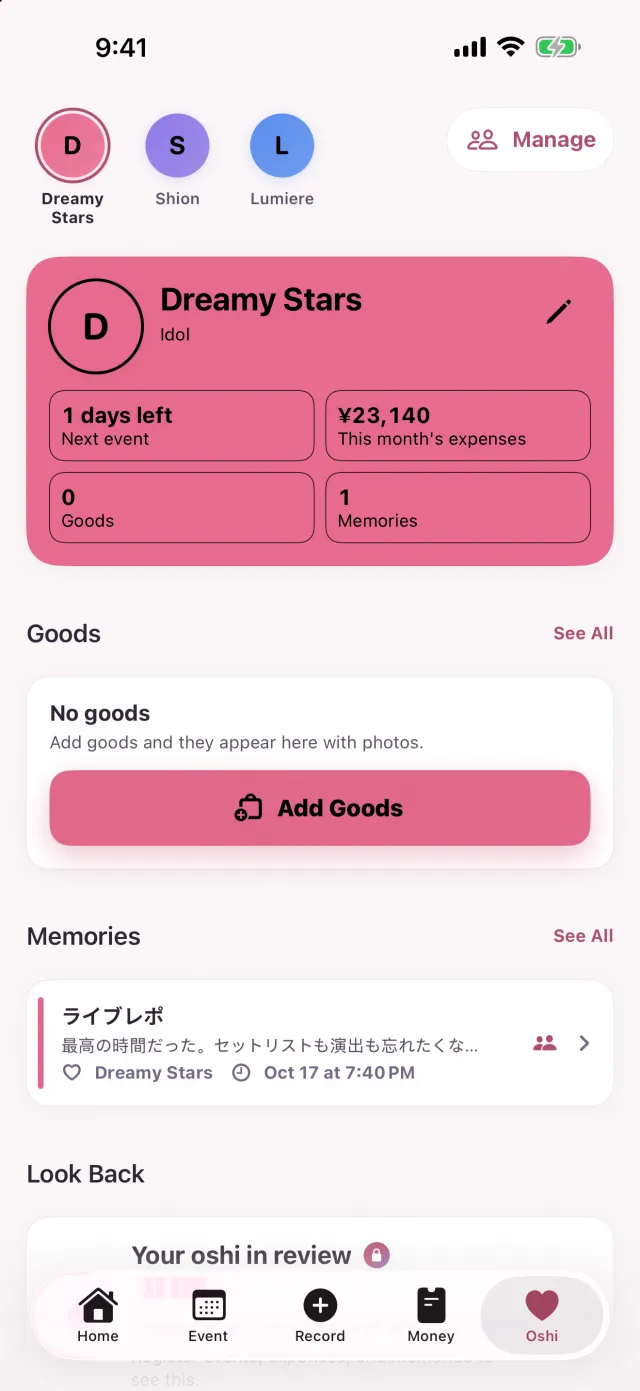
Save each memory with photos and the setlist. Your oshi's page brings together their profile, anniversaries, goods and memories.

  • You choose what to share

    For a memory you choose to share, the title, text and setlist can be read by others in Everyone's Reports. Photos are not shared.

  • Milestone days, celebrated

    Days since you started supporting your oshi, birthdays, anniversaries. On a milestone day, Home celebrates it, and you can make a Milestone Card for free that day. You also get a notification at 9 a.m. on birthdays and anniversaries.

  • Your year on a card

    Your yearly recap can be turned into a share card for free.

Your oshi's page, with anniversaries, goods and memories below the profile.
"Your oshi in review" and the share cards for monthly recaps and anniversaries are Premium features.

More

More you can do

You can also use it from your Home Screen, your Lock Screen and Siri.

  • Widgets

    The "Oshi" widget shows your oshi's photo, how many days you've supported them and the days until your next event. The "Countdown" and "This Month's Oshi Spending" widgets are Premium.

  • Lock Screen on show day

    From 6 hours before the show starts, a countdown to showtime appears on your Lock Screen, and in the Dynamic Island on iPhones that have one.

  • Event Guide

    Put the date and time, venue, travel and hotel, and what to bring into one image and send it to the friends you're going with. By default, amounts are left out of the image.

  • Siri and Shortcuts

    Add an event, check your next event or see this month's spending with Siri or Shortcuts.

  • Sign-in is optional

    As a guest, you can use the same features as when you're signed in. Sign in later with Apple or Google, and your records come with you.

  • App lock

    Require Face ID, Touch ID or a passcode to open the app.

Free and Premium

Start for free. Go Premium to record more.

The Free plan has limits on how much you can record. If you reach a limit, you can still view, edit and delete everything you've recorded.

Free

Free to use, with limits on how much you can record.

How much you can record on the Free plan
Oshi3
Events30
Expenses50
Memories50
Goods50
Active lottery entries1
Snap to Record3 a month

Events created by the Lottery Board don't count toward the event limit. Entries that weren't selected and entries you've already paid for don't count as active entries.

Premium

An auto-renewing subscription, monthly or yearly. Please check the App Store for prices.

  • No limits on oshi, events, expenses, goods or memories
  • Any number of lottery entries at once, with entry deadline and payment deadline reminders 3 days before and on the morning of each deadline, too
  • No limit on Snap to Record
  • Oshi budgets, with what's left on Home and in widgets, and alerts when you overspend
  • "Your oshi in review", plus monthly recap and anniversary share cards
  • Up to 10 photos per memory (Free: 3), with photos also saved to the cloud
  • Choose your app icon from 10 colors
  • Export expenses as CSV or PDF
  • The "Countdown" and "This Month's Oshi Spending" widgets
  • No ads in the app

Subscriptions renew automatically unless auto-renew is turned off at least 24 hours before the end of the period. You can manage or cancel your subscription in your iPhone's Settings after purchase.

Support

Frequently asked questions

If your question isn't here, send it from "Contact" at the very bottom of the page.

Are my photos sent anywhere?

Scanning happens on your iPhone, and images and text never leave it for scanning. With Premium, receipts attached to expenses and photos in memories are also saved to the cloud.

Is it free?

Yes. The Free plan has limits on how much you can record (see the table above). If you reach a limit, you can still view, edit and delete everything you've recorded.

Do I need to sign in?

No. As a guest, you can use the same features as when you're signed in. Sign in later with Apple or Google, and your records come with you.

Can other people see my memories?

Only memories you choose to share appear in Everyone's Reports. You decide one memory at a time, and photos are never shown to others.

Which devices and languages are supported?

iPhone with iOS 17.0 or later. The app is available in Japanese, English, Korean and Chinese (Simplified and Traditional).

Start with your next lottery entry.

Oshi Life is free to download and works on iPhone with iOS 17.0 or later.

View on the App Store